Chromebooks are a reliable option in K–12 schools. They’re affordable, easy to manage, and work well with Google Workspace for Education. This makes them suitable for 1:1 programs and shared classroom carts.
Google Admin handles basic management but isn’t built for recovery or safety. Senturo covers that need with tracking, locking, and automation that work across ChromeOS and all other systems in the district.
Why schools need to track and protect their Chromebooks
Schools manage large numbers of student devices, making it important to keep track of them and protect the data they carry. As learning relies more on digital tools, the risk of loss or mishandled devices grows.
Tracking systems help schools respond quickly when a device goes missing and reduce the risk of unauthorized access.
How Senturo protects and tracks Chromebooks
Senturo is a device security and location tracking platform designed for schools and school districts.
It allows IT and safety teams to:
- View all protected devices on a live map, including Chromebooks, Windows, macOS, iOS, and Android
- Locate, lock, and message devices from one dashboard
- Access detailed location and activity history to share with school leaders or law enforcement
- Connect with tools like Google Admin Console, Jamf Pro, Microsoft Intune, Meraki Systems Manager, and Incident IQ
Senturo offers school-friendly pricing, including per-student plans with no device limits.
While classroom tools manage filtering and instruction, Senturo supports security, recovery, and student safety.
Cross platform coverage for mixed fleets
Even if Chromebooks are your main student device, most districts have a mix of hardware: iPads in early grades, Windows or Mac laptops for teachers, or specialty devices in labs.
Senturo protects:
- Chrome OS devices
- Windows laptops and desktops
- macOS devices
- iOS and iPadOS
- Android
The same policies, maps, and workflows apply across operating systems so IT teams learn one tool rather than one tool per device type.
Features That Help Schools Track and Secure Chromebooks
Below are the core capabilities that matter most for Chrome OS fleets.
Fleet Map View
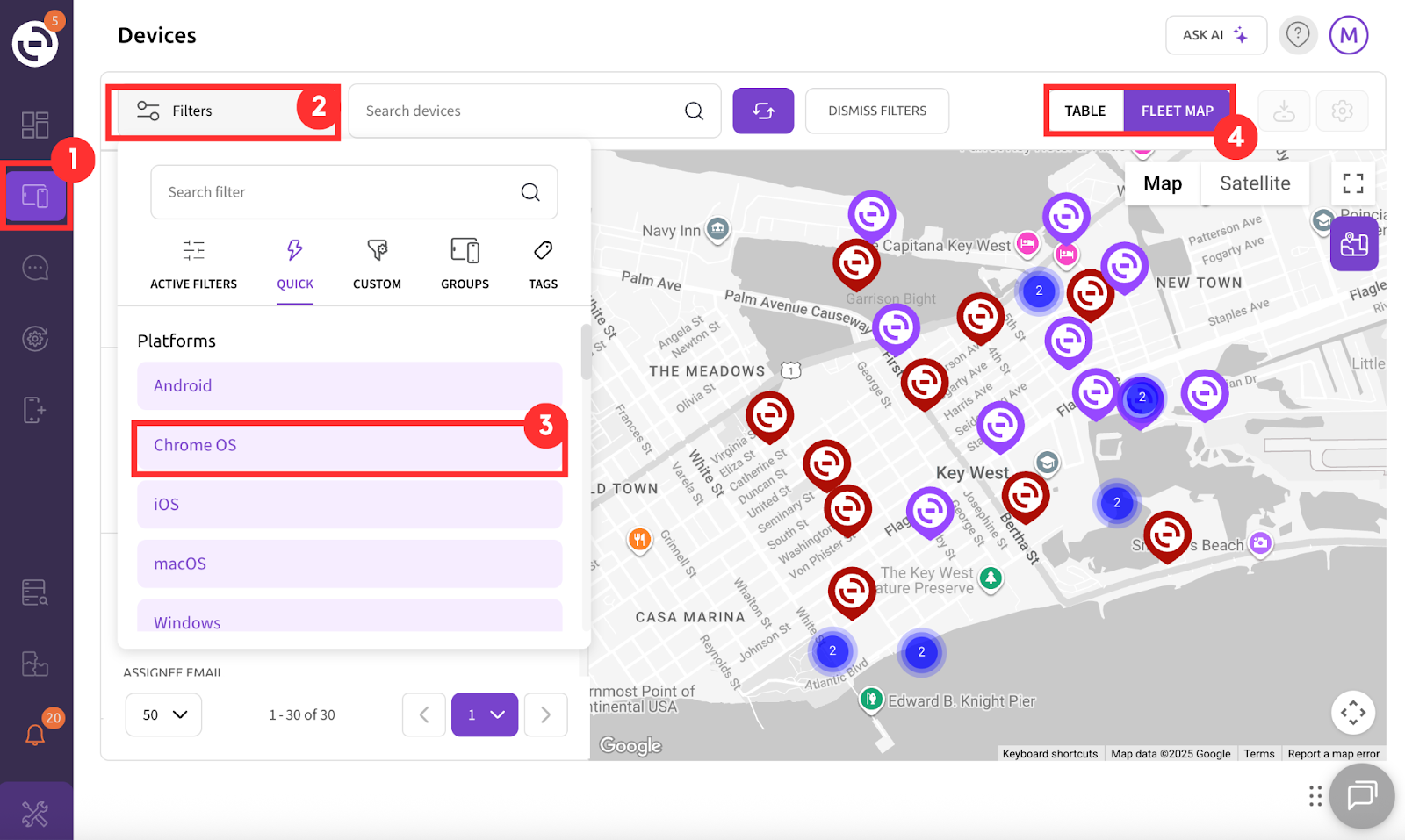
Fleet Map View is the main dashboard in Senturo. It makes it easy to see where devices are without sorting through lists.
What the Map Shows
- A pin for each device that’s checked in
- Street map with landmarks and school boundaries
- Satellite view showing buildings, parking lots, and bus areas
- Zoom options to view a single campus or the full district
Teams can switch between map and satellite views as needed. Street maps help with quick orientation, while satellite view helps locate specific buildings or areas.
Fleet Map View is designed for fast searches and common tasks:
- Search by name, username, serial number, or asset tag
- Filter by school, system group, OS, or status like “Missing Mode”
- Search by group
- Click a pin to view device details such as check-in time, network, and location history
- Take actions like enabling Missing Mode or locking a Chromebook
How to Access Fleet Map View to Track Chromebooks
- Go to the main Senturo dashboard.
- Select Filters, then choose Quick.
- Under Platforms, select Chrome OS.
Default Location Tracking
Senturo regularly collects location data from all protected devices. For Chromebooks:
- Default tracking can be set as often as every 10 minutes
- Missing Mode enables real-time tracking with extra data:
- Windows: location, SSID, IP, optional screenshots
- ChromeOS: location, IP, optional screenshots (SSID not available)
- macOS, iOS, Android: location, SSID, IP
- Windows: location, SSID, IP, optional screenshots
Missing Mode for Active Incidents
When a situation shifts from a possible loss to a confirmed issue, IT can enable Missing Mode on a Chromebook.
In Missing Mode:
- Location updates switch from timed intervals to real time
- IP-based tracking continues while the device is on and connected
- Optional screenshots can be captured (Windows and ChromeOS)
- All actions are logged with timestamps and user details
This turns Senturo into an active tool for recovery and response, not just a device tracker.
How to Activate Missing Mode
- Click on the device (or select multiple using filters, tags, groups, or manual selection)
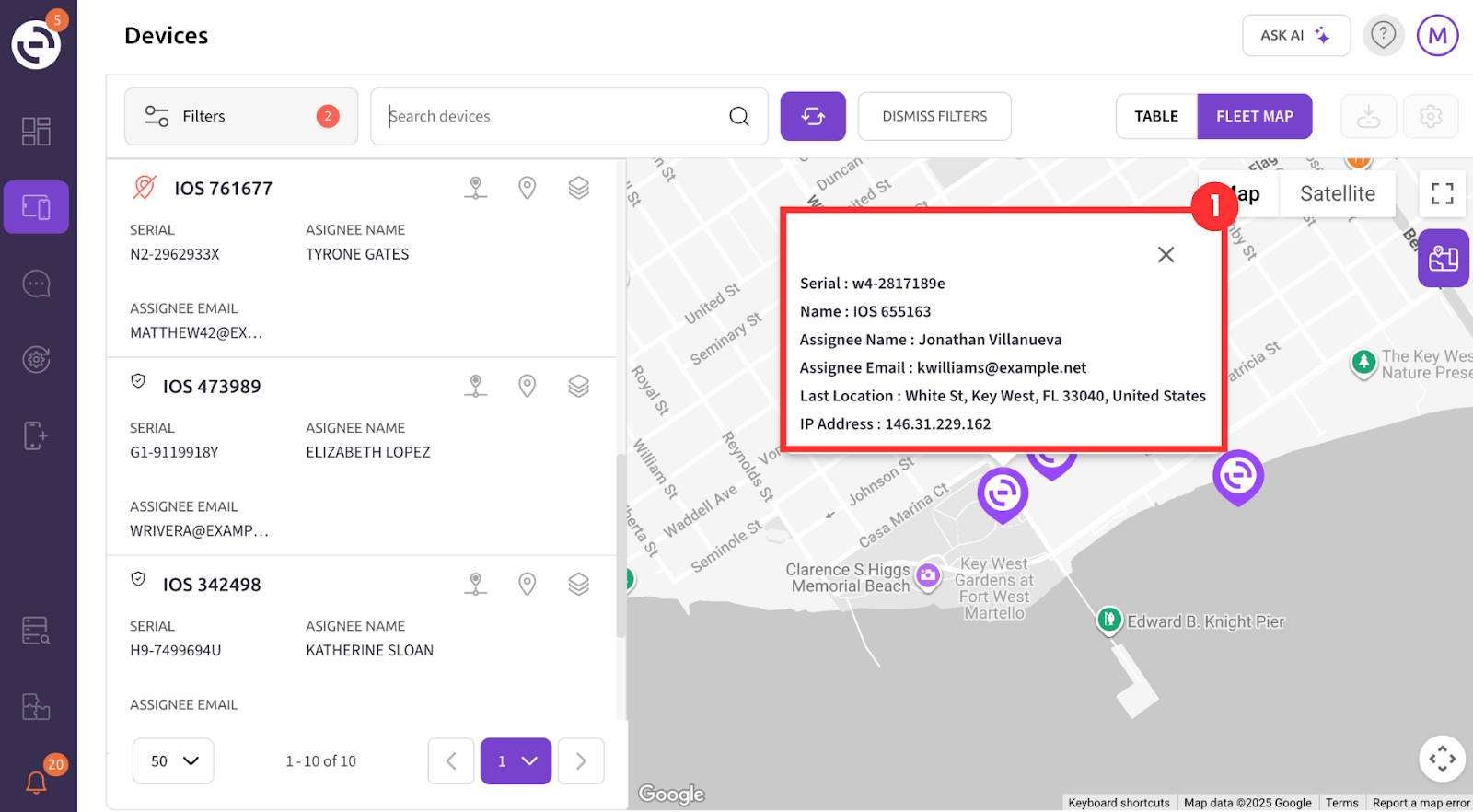
- In the main device dashboard, select Management
- Under Device Status, click Missing
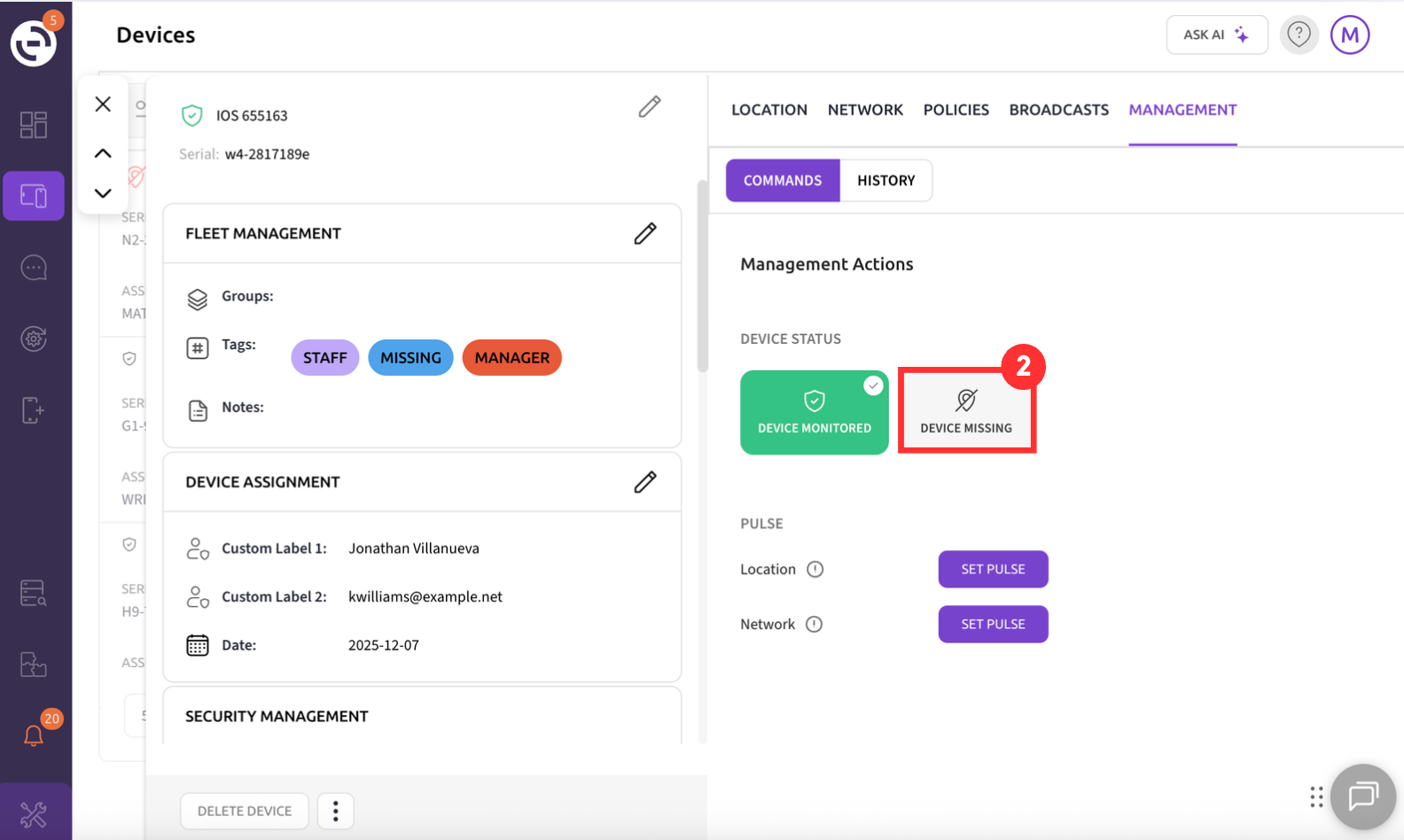
- Confirm the device is marked as missing
- Live tracking begins immediately
How to Lock Chromebooks
Unlike traditional locks that break communication, Senturo Lock keeps the connection active.
How it works:
- Allows user sign-in but blocks access to Google services
- Sends location and IP updates every 10 minutes or in real time during Missing Mode
- Optional screenshots in Missing Mode
- Can only be unlocked with a one-time admin password entered on the device or from the management console via command
Benefits for schools:
- Clear message on screen showing the device belongs to the school
- Ongoing tracking while locked
- Quick recovery with a simple unlock code
How to Activate Senturo Lock on Chrome Devices
- Mark the device as Missing
- Go to Security Actions and select Lock
- Confirm the action
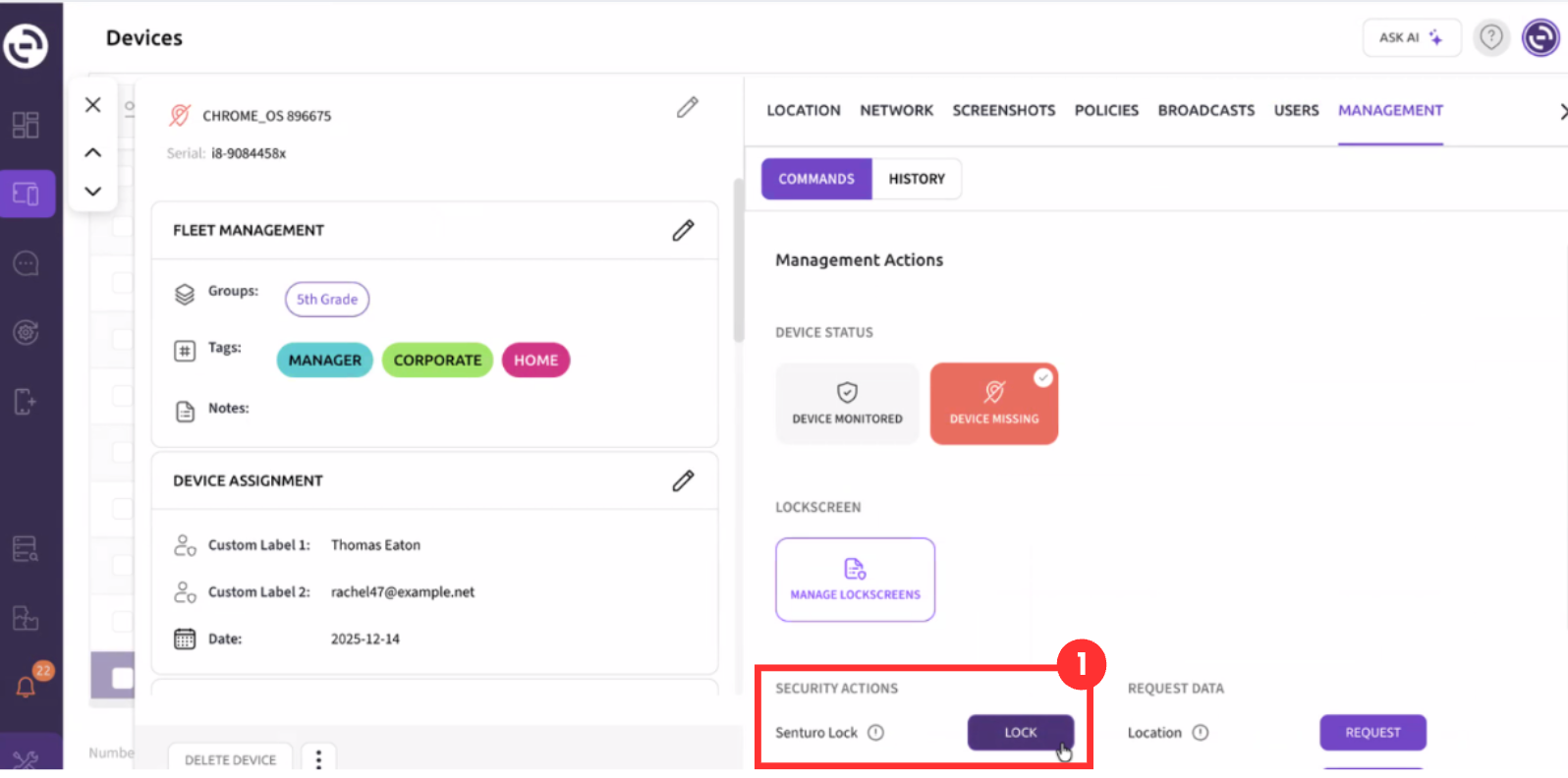
Use Senturo Lock alone for overdue or restricted devices, or with Missing Mode during high-risk cases.
Location History for Chromebooks
Senturo tracks a full location history, not just the last known point. This helps with:
- Reviewing movement over time
- Identifying attendance or runaway patterns
- Providing time-stamped records for law enforcement
Location Data Includes:
- Past locations
- Network and IP info
- Check-in times
- Admin actions like Missing Mode or screenshots
How to Access Location History
- In the main device menu, click Location
- Click on Location History
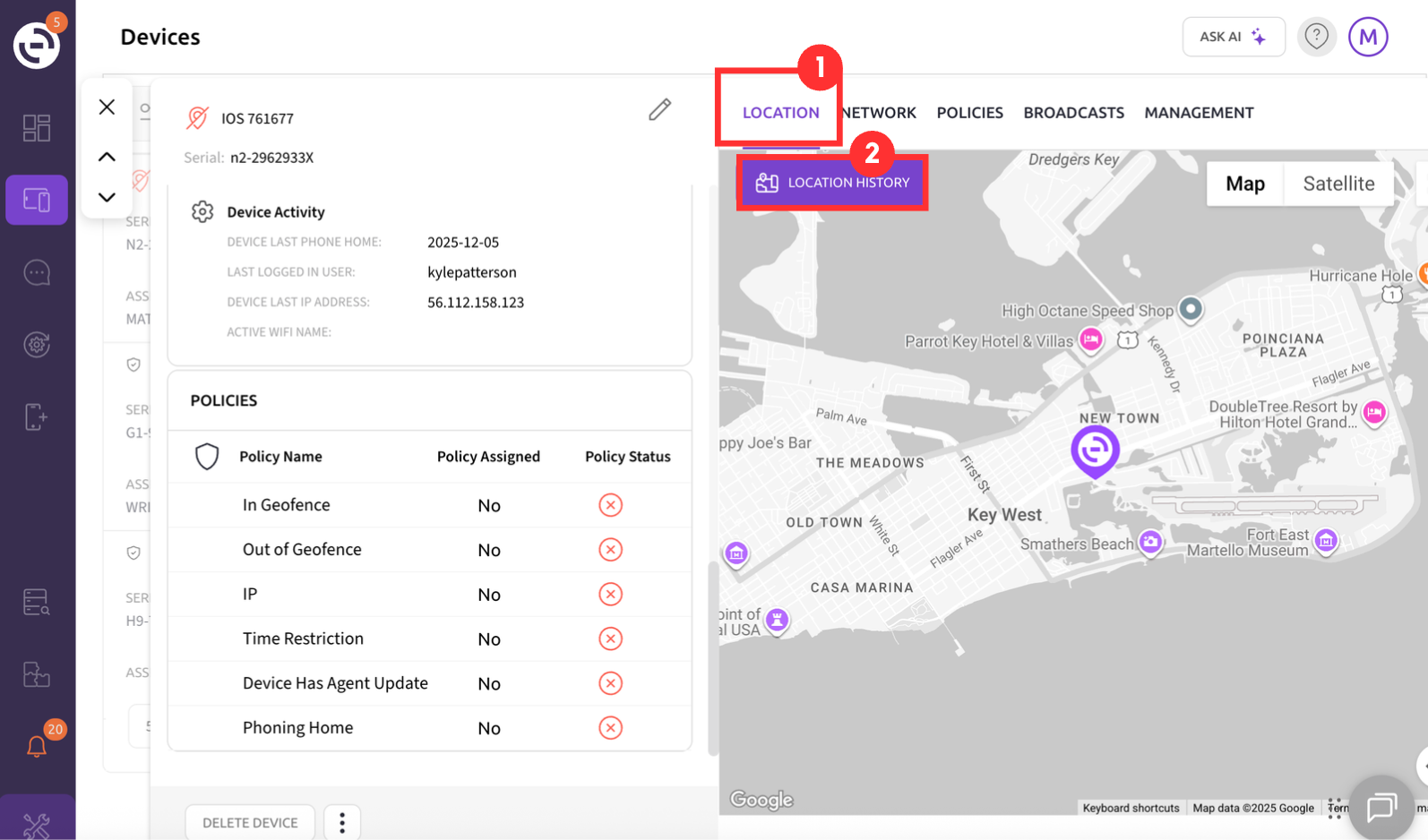
- Use Export, Refresh, or view markers as needed
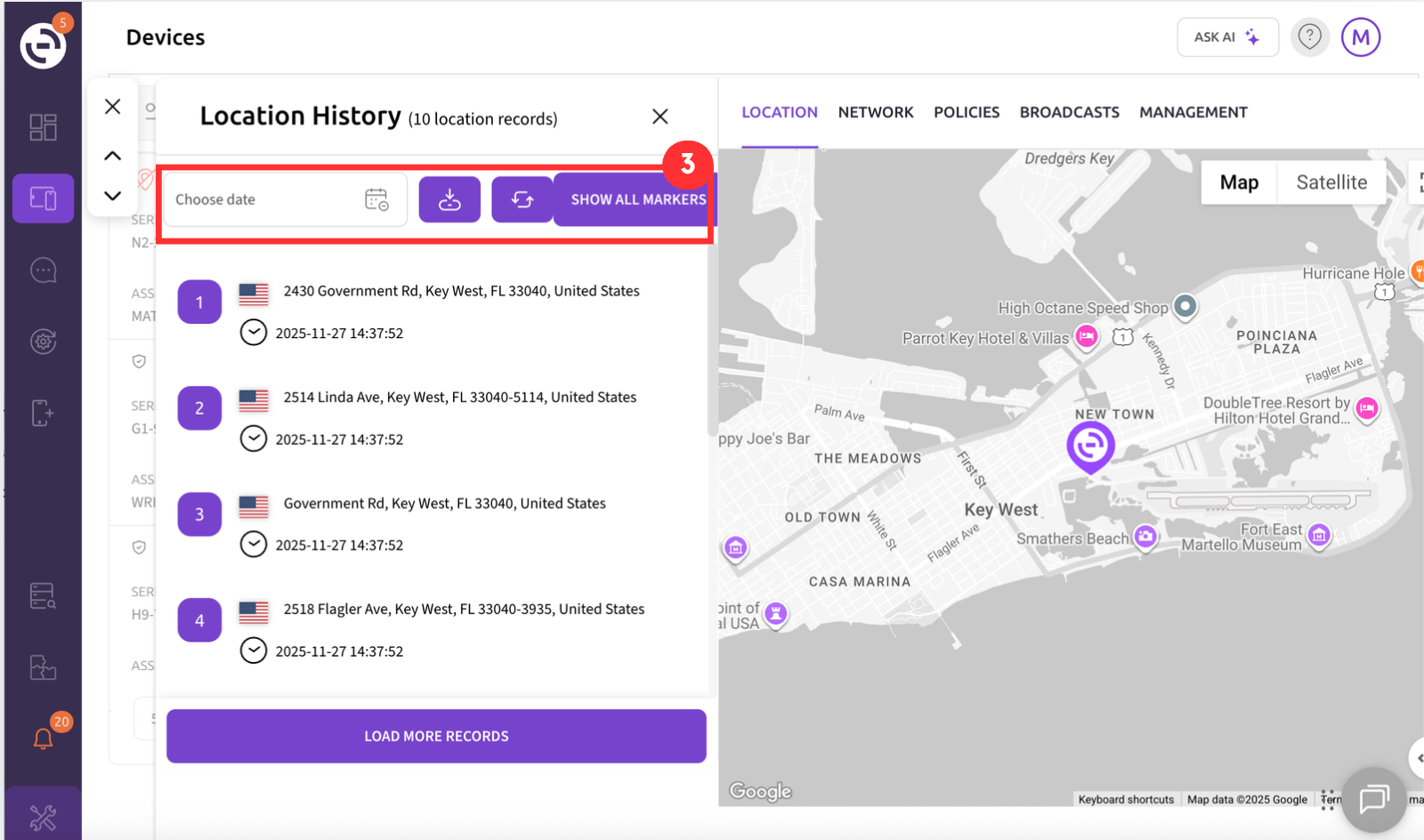
Exportable reports can be shared with staff or law enforcement as needed.
Why Senturo Stands Out in Privacy-Focused Tracking
Senturo supports FERPA compliance with strong privacy controls:
- Limit who can view detailed location data
- Hide data until a device is marked missing
- Require approval for sensitive actions
- Log all access with audit trails
Lock Chromebooks at Scale with Security Automations
Manual tracking doesn’t scale. Senturo’s automation add-on applies smart rules across large fleets:
- Geofencing: Lock and alert when a device leaves district boundaries
- IP fencing: Alert or enable Missing Mode if a device connects from suspicious IPs
- Time rules: Flag and lock overdue loaners automatically
Automations speed up response time and reduce workload for IT teams.
Broadcast Messaging for Quick Device Alerts on Chromebooks
Senturo’s messaging add-on sends on-screen alerts that users can’t ignore.
Use cases include:
- Return reminders for loaners
- Testing day notices
- Site-specific safety alerts
Messages appear over any open app and can be targeted by school, group, or device.
How to Roll Out Senturo on Chromebooks
Step 1: Set Goals and Privacy Settings
- Choose focus: loss, safety, or both
- Define geotracking rules and approvals
- Align teams on when to trigger Missing Mode
Step 2: Connect Google Admin
- Link Senturo to Google Admin
- Identify target OUs
- Plan rollout by school or group
Step 3: Deploy Agent or Extension
- Push via Google Admin
- Confirm devices report to Senturo
- Set tracking interval (e.g., every 10 mins)
Step 4: Set Policies and Automations
- Enable Senturo Lock
- Add geofencing/IP fencing rules
- Define who can trigger and approve Missing Mode
Frequently Asked Questions about Chromebook Tracking
How can I track a lost Chromebook remotely with Senturo?
If the Senturo agent or extension is installed and the Chromebook is powered on and online, you can view its location in the Senturo console. You can search by user, serial number, or asset tag. Turning on Missing Mode activates real time tracking. You can also apply Senturo Lock so the device shows a return message and cannot be used normally.
Which service offers the most accurate location tracking for Chromebooks?
All Chromebook tracking tools are limited by the signals ChromeOS provides, including IP data. Senturo improves accuracy over time through frequent check-ins, real-time Missing Mode, location history, and network information. This combination gives districts enough detail to work with transportation teams, families, or law enforcement even when a single point is not exact.
How do I enable location tracking on Chromebooks?
Senturo is deployed through Google Admin Console. Once the agent or extension is pushed to the correct organizational units, devices start checking in automatically based on the tracking cadence you select. Students do not need to take any action.
Can I track a school Chromebook from my phone?
Authorized staff can open the Senturo console in any browser, including on a smartphone. District policy should define who has permission to look up devices and from which networks. Senturo is not designed for parents or students to track devices on their own.
How do I set up theft protection and automation rules for Chromebooks?
In Senturo you can:
• Set a base tracking cadence for all student Chromebooks.
• Create geofencing alerts for devices that leave district or state boundaries.
• Turn on IP fencing for devices that connect from out-of-country networks.
• Choose which actions run automatically and which require approval.

Björn Hall, Co-Founder & CEO @ Senturo
Björn Hall is an experienced software entrepreneur in mobile security fleet management. As Co-Founder & CEO, he has led Senturo’s evolution into a powerful enterprise solution, delivering advanced geo-tracking, compliance automation, and security enforcement across macOS, Windows, iOS, Android, and Chrome OS. More about Björn